What SoulGen image editing actually does
Last Tuesday a reader sent me a portrait with one problem: a bright orange traffic cone parked right behind the subject's left shoulder. Instead of opening Photoshop and learning layer masks, you brush the area, type a short instruction, and let the AI redraw that patch. That is the core of the editing tool inside SoulGen, and it sits next to the text-to-image generator, the outpainting feature, and the newer video tools.
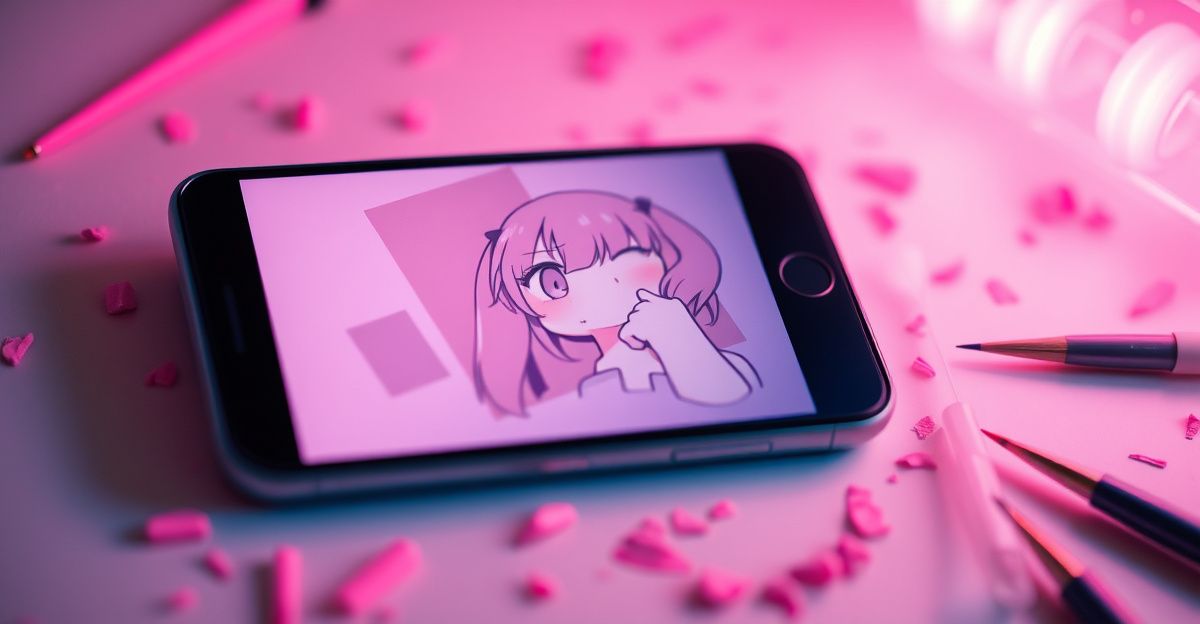
The technical name for this approach is inpainting. You define a region, the model reads your prompt, and it generates fresh pixels that blend with the surrounding image. Because the rest of the photo stays untouched, edits feel local rather than like a full regeneration. It works on AI-generated characters you already made on the platform, and on photos you upload yourself, within the content rules.
A step-by-step walkthrough you can try today
Reflect on what you want to change before you click anything. A vague goal produces a vague edit. Once you know the target, the workflow stays short.
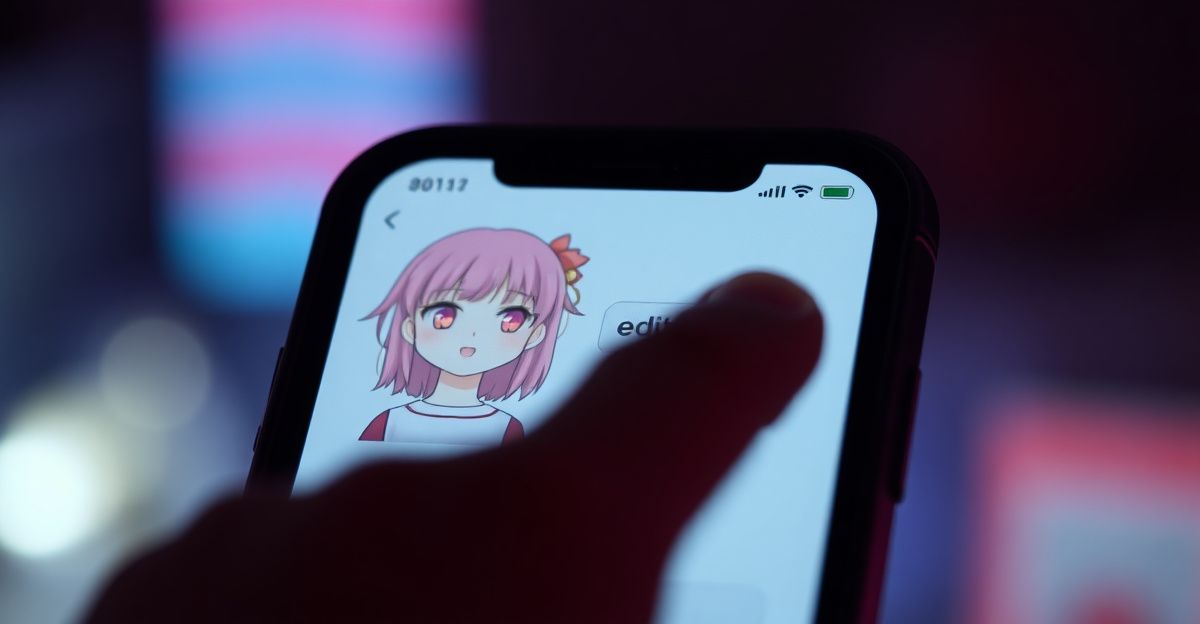
First, sign in with email or Google. Second, open the image editor and upload your source picture, or pick one from your gallery. Third, use the brush to paint over the area you want replaced. Keep the selection slightly larger than the object itself so the model has room to blend edges. Fourth, write a prompt that describes the new content in plain language, for example "red silk blouse, soft studio lighting, same pose". Fifth, generate. You usually get a few variations to choose from, and you can refine the prompt and try again if the first pass misses.
Try this small habit: save the prompts that work. Over a week of practice you will build a personal library, and your confidence with the tool grows fast. That is the journey most creators describe when they move past the trial-and-error phase.
Prompt patterns that actually land
You can write prompts in two useful ways. Descriptive prompts name the object, the material, the lighting, and the mood: "navy wool coat, overcast daylight, cinematic". Instructional prompts tell the AI what to do with the existing pixels: "remove the coffee cup, replace with empty wooden table". Both work, but mixing them often produces the cleanest result. Explore short prompts first, then add detail only when something looks wrong.
Three Sundays ago I sat down at the kitchen table at around 9pm with a single cup of tea and one test image of a friend in a denim jacket. I gave myself fifteen minutes and one rule: one sentence per prompt, no piling on adjectives. By minute twelve I had a clean swap to a charcoal blazer, and the lesson stuck harder than any tutorial I had skimmed that month. Identify the change, state it in one sentence, then stop typing. Apply that to your editing sessions and your hit rate climbs quickly.
Pricing, credits, and what to expect
SoulGen runs on a credit model rather than flat unlimited use. Image edits consume credits per generation, and vertical norms in the AI companion space sit around 10 tokens per image, with packs commonly starting near 4.99 for 100 tokens and scaling up. Check the live pricing page before you buy, because plans shift. The refund policy is strict: you can request a refund within 14 days, but only if you have not used any credits or generated any images. Once you spend, the spend is final.
Privacy handling is worth noting. Creations you do not publish to the community are deleted automatically after 7 days. That protects you, but it also means you should download anything you want to keep. Synapse AI Limited, registration number 76954156, operates the service from Hong Kong, and GDPR-style data rights apply when you sign up from the UK.
What the tool will not do
Content filtering blocks prompts that target real private individuals, minors, or non-consensual scenarios. Hate speech and illegal activity are filtered pre-generation through prompt scanning, and post-generation classifiers review outputs. If a legitimate edit gets blocked by mistake, you can appeal through support. For precise commercial product photography, dedicated retouching software still wins, because inpainting can shift textures and small details in ways that matter for catalogue work. For character art, portraits, and creative reimagining, the AI route is much faster.
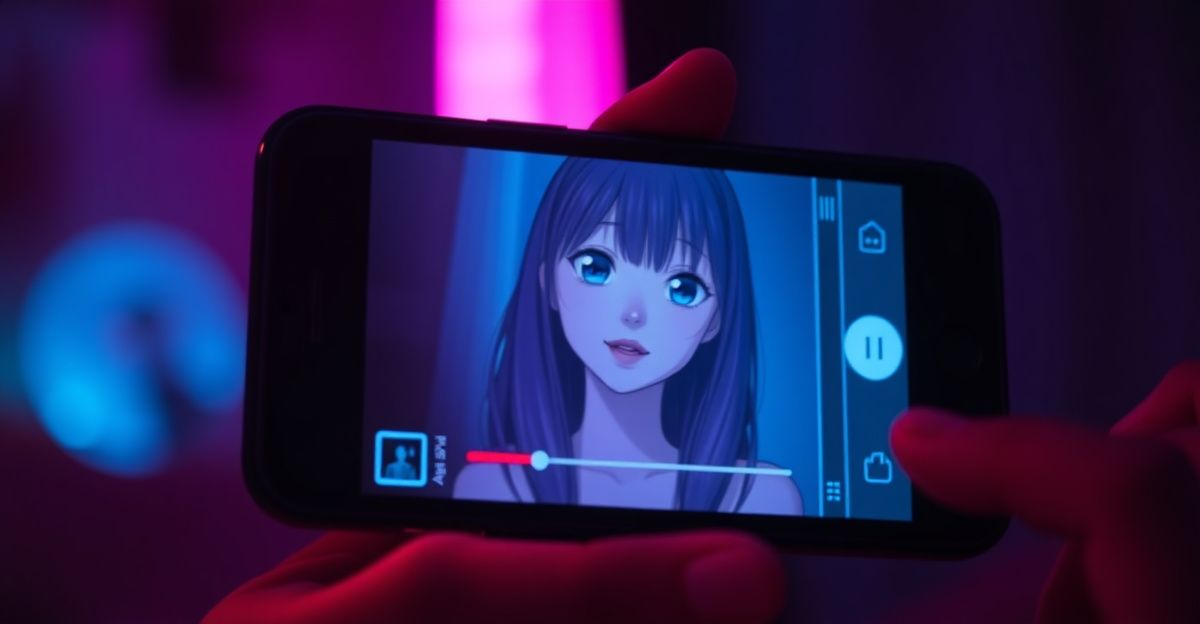
If you want to extend the canvas rather than edit inside it, switch to outpainting. If you want to animate the result, the video generator can turn a still into a short clip with lip-sync. For building a recurring character to edit across sessions, the character creation flow is the right entry point, and the broader platform review covers strengths and weak spots in detail.
Practical tips to grow your skill
Practice on low-stakes images first. Edit a holiday snap, change a t-shirt colour, remove a lamppost. Each small win builds the connection between your intention and the prompt language the model responds to. Keep a notebook, digital or paper, with three columns: prompt, what worked, what to change. After ten sessions you will spot patterns that no tutorial can teach you, because they depend on your taste and your source material.
Here is your next move: pick one photo from your camera roll tonight, set a fifteen-minute timer, and run three edits using single-sentence prompts only. Log each result in those three columns before bed. What is the one change in your favourite image you have been putting off, and can you make it your first prompt tomorrow morning? If you want the prompt logic to carry over into chat-based tools, a sister project like Candy AI is the next place to test the same short-instruction discipline.
Comments
No comments yet.
Leave a comment
Your email will not be shown. Comments are reviewed before they appear.