
Twenty seconds. That is the maximum clip length SoulGen will render, and learning to work inside that window is the whole game. Turning a still portrait into a talking, moving clip used to demand editing software and patience. Today you can sketch the idea in a sentence, hand it to a model, and watch it animate within a minute. This walkthrough shows you exactly how to do that on SoulGen, what each setting does, and where beginners typically stumble.
What You Can Actually Make
Before you touch a button, picture the output. SoulGen produces short clips, up to 20 seconds, rendered in HD at 720p or 1080p. You can animate a still image you uploaded, generate a video directly from a text prompt, or feed in an AI character you built earlier in the platform. Lip-sync is the headline feature: paste a script or upload audio, and the character's mouth movements follow the words. Motion stays natural for portrait shots, conversational scenes, and gentle camera pushes. Action-heavy choreography is not the strength here, so plan around dialogue, reactions, and atmospheric beats instead.
Step 1: Create Your Account
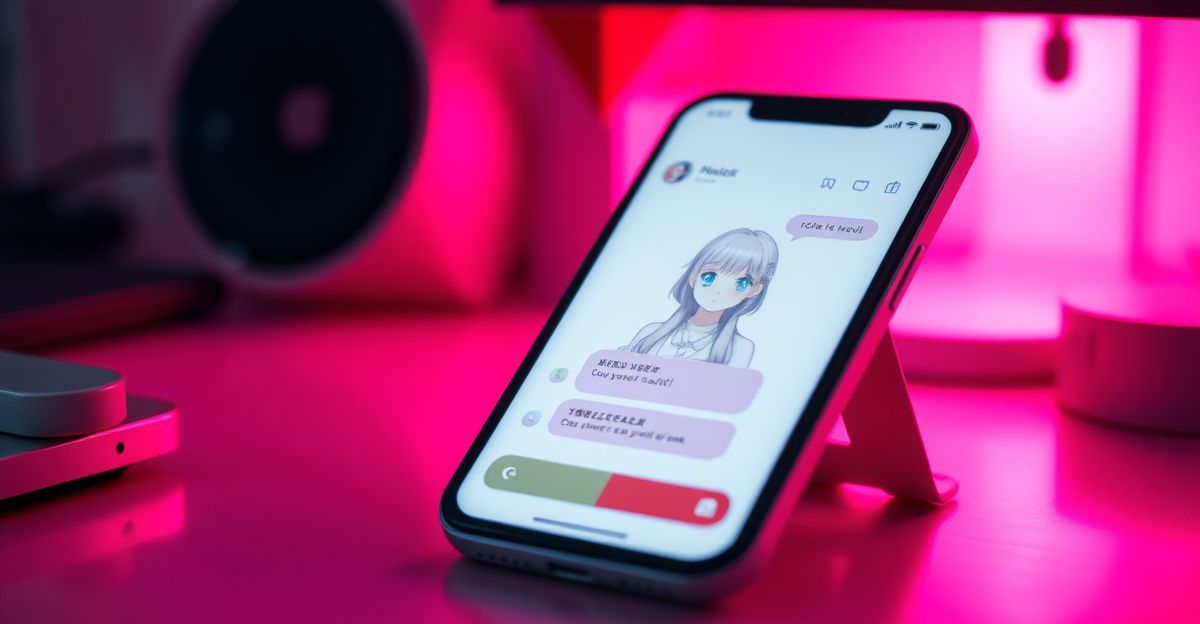
Open soulgen.co.uk and pick either email signup or Google login. Email registration sends a verification link; click it within a few minutes or request a fresh one. Google sign-in skips that step entirely. You will be asked to confirm you are 18 or older, which matches the platform's adult-content policies. New accounts arrive with a small credit balance so you can test the video tool before paying. Save your login details somewhere safe, because SoulGen, operated by Synapse AI Limited (registration 76954156) in Hong Kong, deletes unposted creations after 7 days. Losing access to your account effectively means losing the clip.
Step 2: Choose Your Starting Point
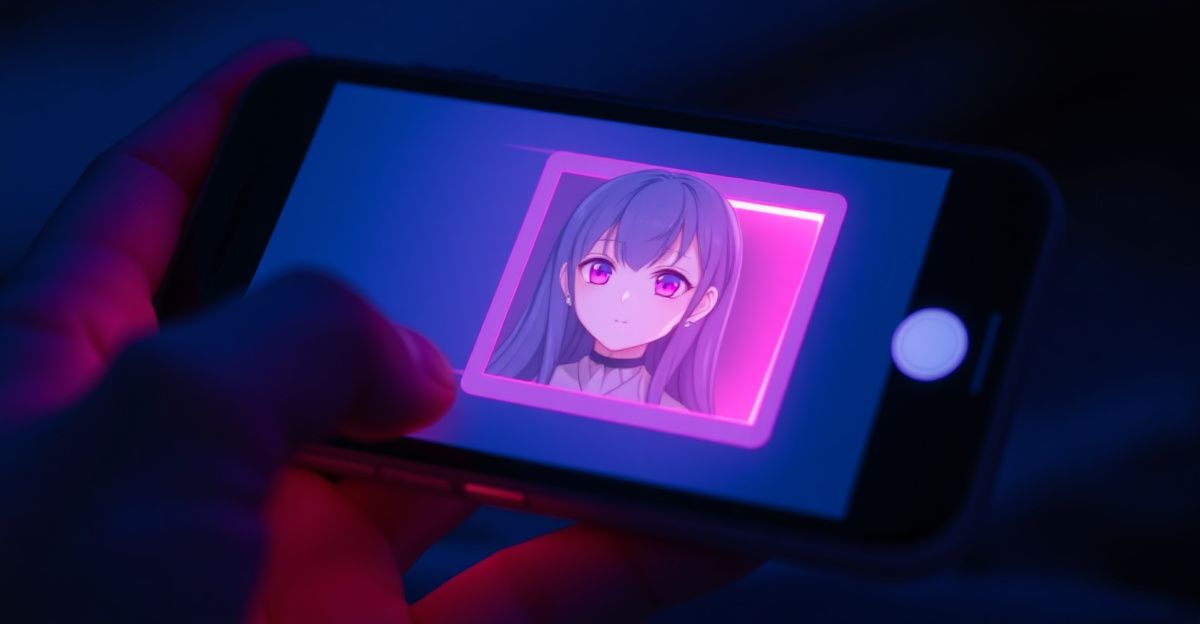
Inside the dashboard, open the AI Video tool. You now decide between two entry points. The first is image-to-video: upload a portrait, a generated character, or any still you have permission to use. The second is text-to-video: describe the scene in plain English and let the model build the frame from scratch. Beginners get cleaner results from image-to-video because you control the face, lighting, and composition before motion enters the picture. If you want to practice prompt-writing, start with a single subject, one location, and one mood. Crowded scenes confuse most diffusion-based video models, including this one.
Step 3: Write a Prompt That Actually Works
Good prompts read like director's notes. Name the subject, the action, the camera behaviour, and the atmosphere. Try this structure: subject plus action plus setting plus lighting plus mood. For example: "young woman in a navy coat, smiling and turning her head, autumn park at golden hour, soft warm light, gentle breeze." Avoid vague adjectives like "beautiful" or "amazing" because they give the model nothing to anchor to. Reflect on what you want the viewer to feel in the final two seconds, then write toward that feeling. If the first render disappoints, change one variable at a time so you learn what the model responds to.
Step 4: Add Voice and Lip-Sync
This is where SoulGen separates itself from simple image-animation tools. One rainy afternoon last March, around three o'clock, I sat down to build attachment-style explainer clips and pasted a 38-word script into the voice panel for a 20-second render. I picked a calm female profile and asked my AI character to walk viewers through anxious versus avoidant patterns. The first take held up well on two-syllable words but tripped on rapid consonant clusters like "protest behaviour," so I rewrote with shorter sentences. The second render looked broadcast-ready. My takeaway: keep scripts under roughly 40 words, enunciate clearly in any uploaded audio, and treat the lip-sync engine as a phoneme-mapper that rewards plain speech over clever phrasing.
Step 5: Render, Review, Export
Hit generate and wait. Render times depend on length, resolution, and server load, usually somewhere between 30 seconds and three minutes. Review the result with sound on, because silent playback hides lip-sync drift. If the eyes feel glassy or the mouth lags, tweak the prompt or shorten the script and regenerate. Once you are happy, download the MP4 immediately. Remember the 7-day automatic deletion policy on unposted content; that clock starts the moment the file lands in your library. Publishing the clip to the SoulGen community pauses the timer, but a local backup is still the safer move for anything you might want to reuse.
Doing This on PC Versus Mobile
The browser version on a desktop gives you the most screen space for prompt iteration, side-by-side previews, and clean file management. Mobile works for quick edits and lighter renders, but uploading high-resolution reference images is faster on a wired connection. If you plan to batch-create clips for social posts, set up a folder system on your computer before you start so you are not hunting for files later. For complementary tips on prompting and character consistency, our SoulGen tips for beginners guide pairs well with this walkthrough, and the broader how to use SoulGen overview covers the image side of the platform.
Credits, Costs, and What the Free Tier Covers
The free tier lets you sample the video tool with limited credits. Longer clips, 1080p exports, and premium voice profiles draw more credits per render. Payment runs through credit card or PayPal, processed by third-party platforms rather than SoulGen directly. Refunds follow a 14-day window for unused subscriptions or credit packs; once credits or images have been consumed, the refund window closes. If you are weighing alternatives in the same category, sister platform Candy AI leans more toward chat-first companions while SoulGen leans toward visual generation, so the two cover different creative needs.
Common First-Time Mistakes
Your next move: open SoulGen, render three 10-second test clips before you touch a longer project, and time yourself writing each prompt with a verb in it. If you can complete that loop today, you will have answered the only question that matters, which is whether the model interprets your wording the way you expect. Try one image-to-video clip with a static subject doing one clear action, then ask yourself, what single variable would I change next? That habit, change one thing, watch what shifts, is the fastest route from beginner renders to clips you would actually publish.
Comments
No comments yet.
Leave a comment
Your email will not be shown. Comments are reviewed before they appear.