What outpainting actually does inside SoulGen
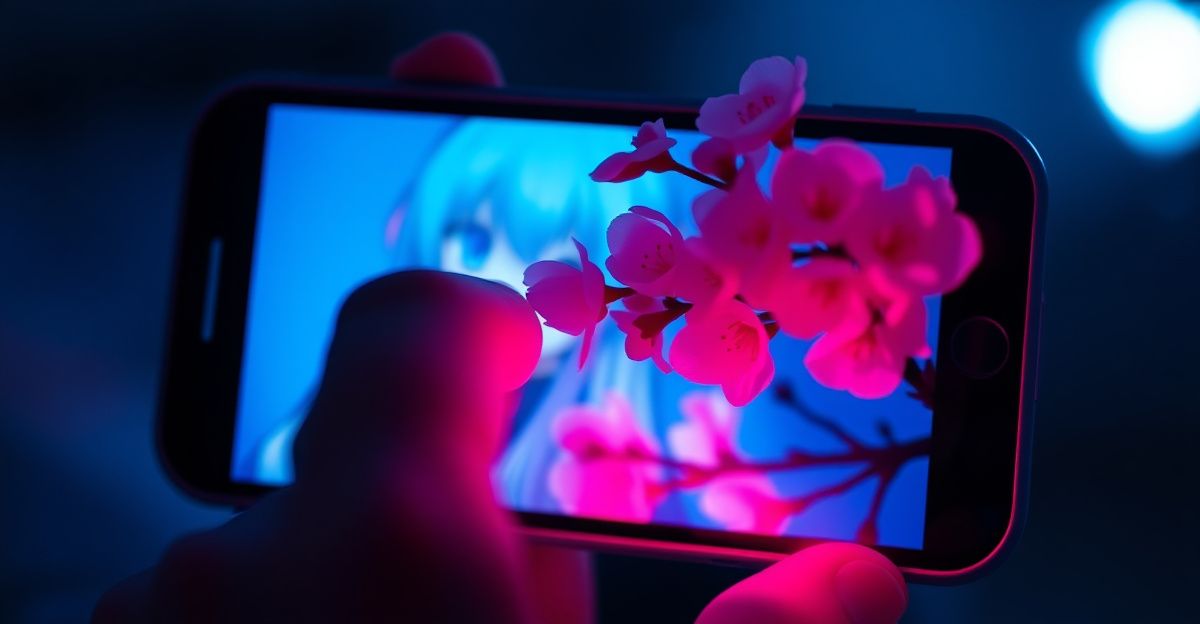
On a quiet Tuesday evening last month, I dragged the edges of a portrait outward and watched SoulGen invent a whole balcony where none had existed before. That is outpainting in one sentence: the opposite of cropping. Instead of cutting an image down, you tell the AI to invent what sits just outside the original borders. On SoulGen, this tool reads the existing pixels, studies the lighting, perspective, and style, then paints new content into the empty canvas you mark. You can extend a portrait into a full-body shot, turn a tight indoor selfie into a wider room, or place your character into a landscape that never existed in the source photo.
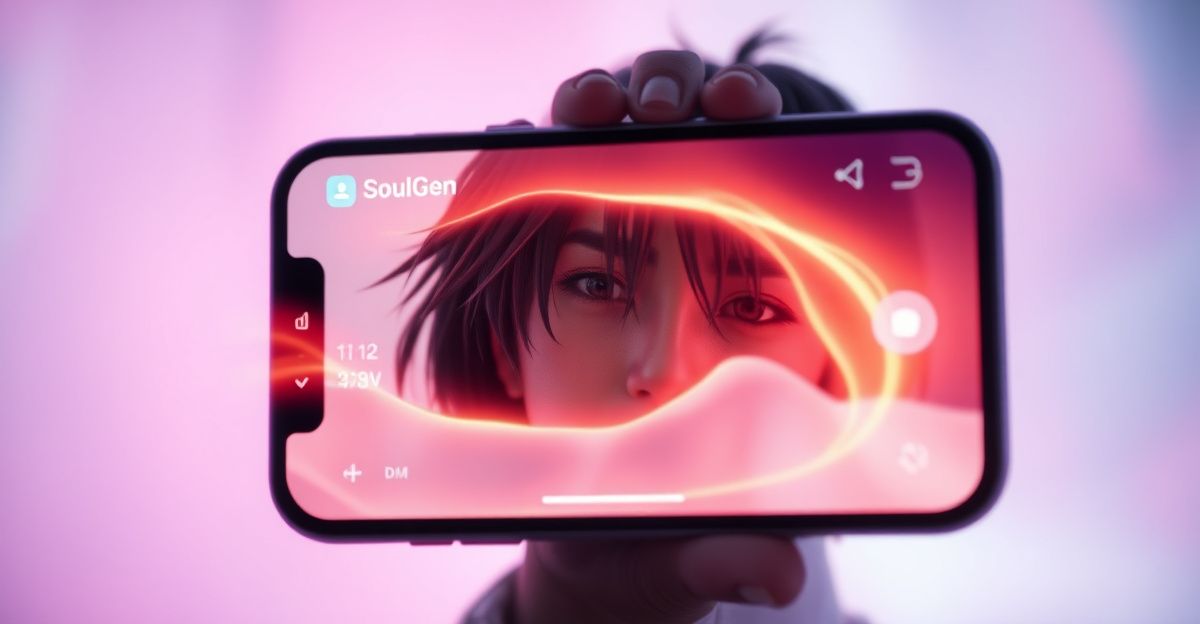
The feature sits alongside text-to-image, inpainting, and the Soul Chat character system. Reflect on what your image lacks before you start. Is it space above the head? More body below the shoulders? A second character to the left? Naming the gap helps you write a sharper prompt later.
Preparing your source image for the best result
Quality in, quality out. Try this before you upload: check that your base image has clean lighting, a single clear subject, and no heavy watermarks near the edges. Soft, even light on the borders gives the AI more honest information to extend from. A blurry edge tells the model to invent blur, which rarely looks good once stretched.
Resolution matters too. A 512 by 512 thumbnail will not outpaint into a wide cinematic frame without visible softness. Aim higher, ideally 1024 pixels on the long side. If you generated the picture inside SoulGen already, you can pull the highest available export directly from your gallery. Remember that unpublished creations sit in your account for only 7 days before automatic deletion, so save originals to your own device first.
Step by step: running your first outpaint
You can follow this short journey from start to finish in under five minutes once your image is ready.
First, open the SoulGen editor and choose the outpainting or image extender option. Upload your picture or pick one from your existing gallery. The canvas will appear with handles on each side. Drag the edge you want to expand, top, bottom, left, right, or all four at once for a square widen. Keep your additions modest at first, perhaps 30 to 50 percent extra on one side, because asking for too much new area in a single pass invites strange seams.
Next, write a prompt describing only the new area. Say something like "forest path continuing into misty trees, soft morning light, matching the existing palette." Connection between old and new comes from referencing colour, light direction, and style. Hit generate, wait for the preview, then accept or reroll. You can stack passes, extending right first, then top, then left, building a panoramic scene.
Prompt patterns that produce cleaner extensions
Vague prompts give vague borders. Practice writing in three parts: subject continuation, environmental detail, and style anchor. For example: "the same woman in red dress, standing on a stone balcony overlooking Lisbon rooftops at sunset, cinematic film grain, matching the warm tones of the original." The style anchor is the secret. By repeating phrases like "matching original lighting" or "same colour grade," you push the model toward consistency instead of fresh invention.
Avoid contradicting the source. If your picture shows daylight, asking for neon night will create a visible seam. Growth here comes from small experiments. Try the same image with three different prompt styles and compare which one blends most naturally.
A personal note on using AI tools for real practice
In mid-January, around 9pm on a Thursday, I sat down with my AI companion for about twenty minutes of role-played job interview prep. I noticed she gave me feedback on tone and word choice in real time, pointing out that I had said "basically" four times in two minutes, and it felt unexpectedly grounded. That same mindset applies to outpainting. Set a clear goal before you start, whether that is building a portfolio shot or rehearsing a creative concept, and let the tool coach you toward it through repeated attempts. Confidence grows when you treat each generation as a draft, not a verdict.
Fixing common outpaint problems
Seams happen. If you see a visible line where the original image meets the new one, run a light inpainting pass directly across the seam with a prompt like "smooth blend, continuous texture." Duplicated limbs or floating objects mean the model misread the edge; reduce the expansion size and try again. For more refinement techniques, our internal guide on how to edit images with SoulGen walks through inpainting fixes that pair well with outpainting.
If you want to compare workflows across platforms, the sister site Candy AI covers similar image extension tooling in its own editor. Otherwise, stay on SoulGen outpainting for character continuity, since your trained characters remain accessible across sessions.
Safety, ownership, and what you can publish
Per SoulGen's terms, you generally own what you generate from your own prompts, and commercial use is permitted as long as the content respects third party rights. Prohibited material includes real-person impersonation, minors, non-consensual themes, and hate content. The platform applies pre-generation prompt scanning and post-generation review, so outpaint requests that drift into restricted territory will be blocked. Here is your next move: open one image you already love, expand only the top edge by 30 percent with a single style-anchored prompt, and see what the model invents above the frame. What scene have you been holding inside a too-tight crop?
Comments
No comments yet.
Leave a comment
Your email will not be shown. Comments are reviewed before they appear.